Help Center · Account, Login, Billing, and Security
2 min read · Account, Login, Billing, and Security
Set up or edit your profile
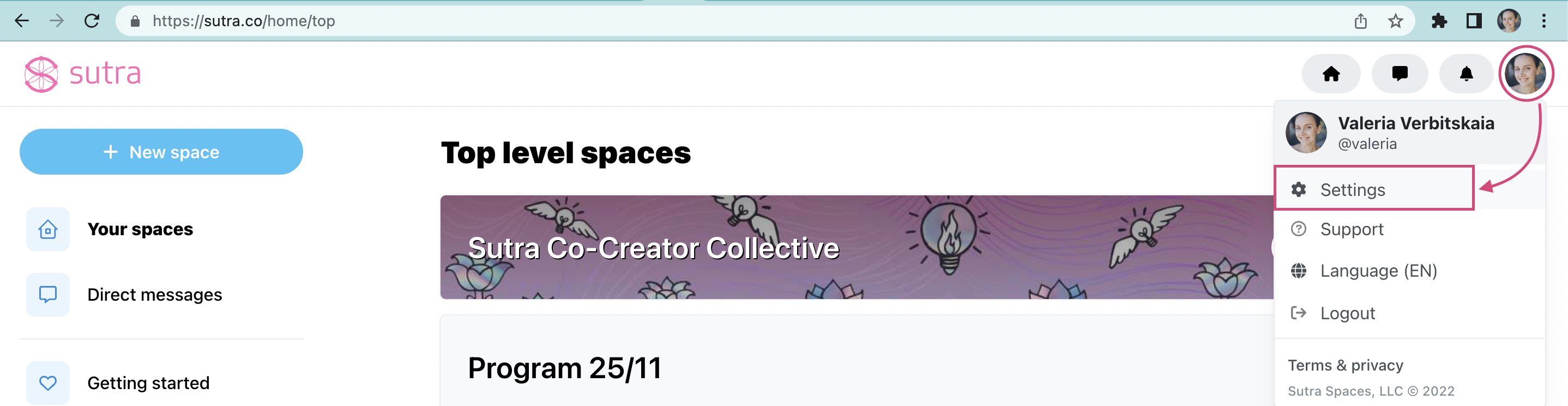
Update your Sutra profile image, name, username, email, and bio from your account settings.
Here's a brief explanation of how to edit your profile on Sutra:
Where to start
Change your profile image, username, email, bio, etc.
Troubleshooting
Changes didn't save — Make sure you pressed the Update profile button. A confirmation notification appears at the top of the page when the update succeeds.
Bio won't accept all your text — The bio field has a 2000-character limit. Shorten your text to stay within it.
Not sure what others can see — Click your avatar icon and choose View profile to see the public version of your profile.
What's next
With your profile set up, you can fine-tune how Sutra contacts you by managing your email notifications, or secure your account by changing or resetting your password.